This article explains how to configure the speakers, microphone and camera used during Microsoft Teams calls, as the device can sometimes switch, e.g. if a third party speaker or microphone is connected and then removed.
From Microsoft Teams, click on the “Settings and more” ellipsis near the top right-hand side of the screen and click the “Settings” option. Select the “Devices” option in the left hand settings menu. This enables the speaker, microphone and video camera devices that are used in a Teams call to be selected. The screenshot below shows the device settings for the speaker and microphone.
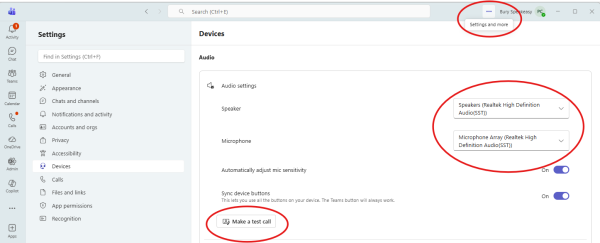
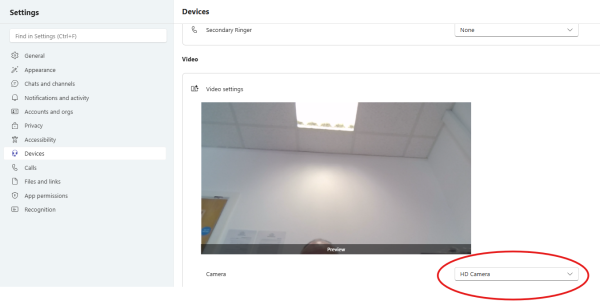
By scrolling down the right hand pane of the display, the camera option can be displayed, as highlighted in the second screenshot. A test call can be made by clicking the “Make a test call” button, as shown in the first screenshot